What LightScribe is
LightScribe is an innovative technology that uses a special disc drive, special media, and label-making software to burn labels directly onto CDs and DVDs.
Because the labels are laser-etched-not printed-there's no ink, no smudging, and no peeling.
Your labels can be whatever you want them to be. Create one-of-a-kind designs with your own photos, text, and artwork or choose from the many free backgrounds provided using the special edition Template Labeler software included with every LightScribe capable duplicator. You may also visit LightScribe's Template Label Gallery, or the Label Gallery for free downloadable designs.
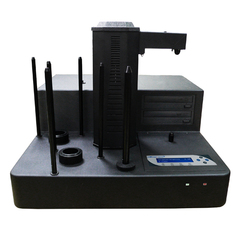
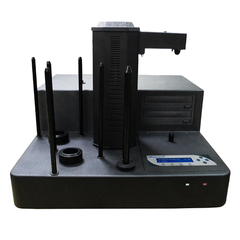
How Lightscribe Works for Autoloader:
1. Burn the image label you created from the saved file on your computer onto a CD. (Please note that the LightScribe software is only compatible with a PC and not recognized on an Apple computer)
2. Place that CD onto the first input spindle and load the print file onto the autoloader duplicator's HDD.
3. Load LightScribe capable discs with the label side down on all of the input spindles until the spindles are full or until the required output is met.
4. Using the menu on the duplicator's LCD, choose and execute the "Print" function.
5. The robotic arm will load the discs into all available drives and burn your LightScribe label directly onto the discs in all the writer drives at the same time.
6. After the printing process is complete, the robotic arm will remove all finished labeled discs from the drives and place the successfully printed discs into the output bin.
7. The loading and unloading process will repeat until the system meets the required number of printed discs or the unit runs out of new discs to print on.
8. Remember, the same drive that burns your label burns your data, too.
How Copy + Print Works for Titan Lite Flipper:
1. Load LightScribe capable discs with the data side down on the input spindle until the spindle is full or until the required output is met.
2. Using the menu on the duplicator's LCD, choose and executethe "Copy + Print" function. Select the data file from preloaded HDD partitions for both the copy and label printing file. (For instructions on how to preload the Data and label files, please consult the user manual)
3. The robotic arm will load the discs into all available writer drives and then copy the designated data content onto the discs at the same time.
4. After the copy process is complete, the robotic arm will remove each disc individually from their respective drive and place them over the flipper to be flipped 180 degrees. Afterwards, the robotic arm will pick up the disc again and place it back in the drive with label side down for printing.
5. After the printing process is complete, the robotic arm will remove all finished labeled discs from the drives and place the success fully printed discs into the output bin.
6. The loading and unloading process will repeat until the system meets the required number of copy and printed discs or the unit runs out of new discs to pick up.
Benefits Of Lightscribe Duplicator:
The Automated LS Duplicator allows the user to both copy data, audio or video files onto the data side of recordable CD's or DVD's, but also can print directly onto the label side of LightScribe capable CD's and DVD's. This is all done in a single standalone automatic duplicator where all the drives will print or duplicate simultaneously for a faster superior end product. All of this is done without the need to connect to a PC, refill ink cartridges/thermal ribbon, or a master degree in mechanical engineering. The Automatic LS Duplicator is so easy to use and offers such exceptional print and duplication quality, that anyone can use one!
Lightscribe Labeling Speed: Labels per hour
| Labeling Setting |
1 |
2 |
3 |
| Title Only |
90 |
60 |
45 |
| Graphics |
15 |
9 |
6 |
LightScribe sample gallery: Title Only
Printing Setting: Draft |
Printing Setting: Normal |
Printing Setting: Best |
LightScribe sample gallery: Graphics
|
Printing Setting: Draft |
Printing Setting: Normal |
Printing Setting: Best |